Setup guide

How SalesToAccounts works

Can I see what this will do before relying on it? Yes. Create an account in the app, connect Xero and eBay, review one real historical payout, and only then enable scheduled posting.

Xero is supported now. FreeAgent, QuickBooks Online and Sage are coming soon. Planned integrations are not available in production yet.

The screenshots below use the live Xero path as the visual example. The same sequence applies across the supported workflow, and the first payout is what proves fit.

Before anything posts

What happens before anything posts?

STA shows the payout reference, date, and amount, then shows the split lines so you can check the result before the first post.

  • STA shows the payout reference, date, and amount.
  • STA shows the split lines.
  • STA checks that the posting balances.
  • You review the first payout before anything is posted.
  • Scheduled posting only becomes useful after the first payout proves the setup.

If you want the manual workflow first, read how to import eBay payouts into Xero.

Step 1

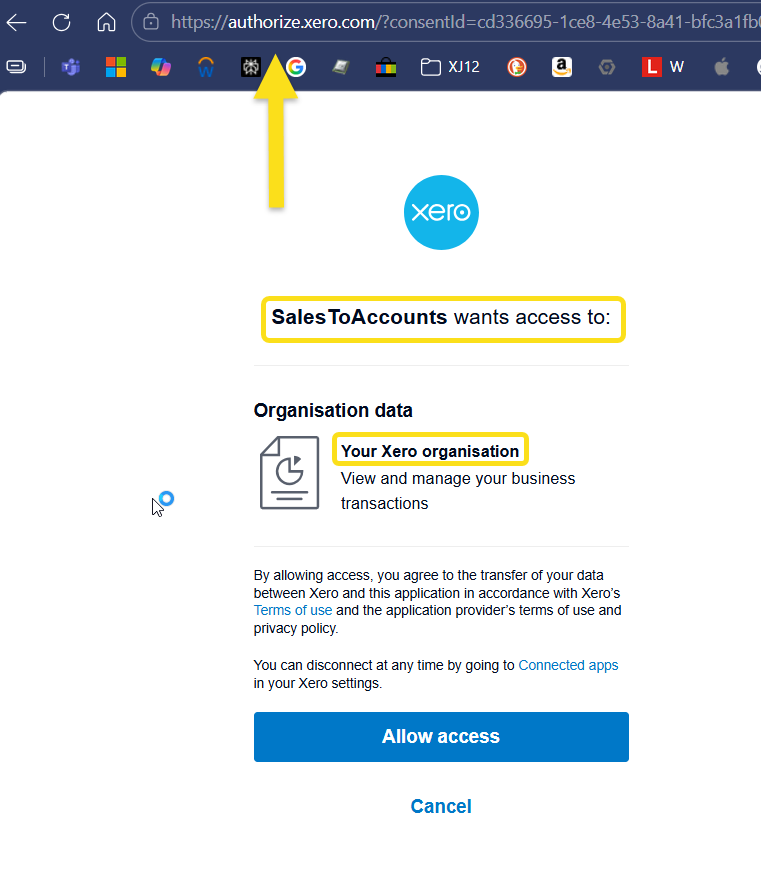
Create your account, then connect Xero

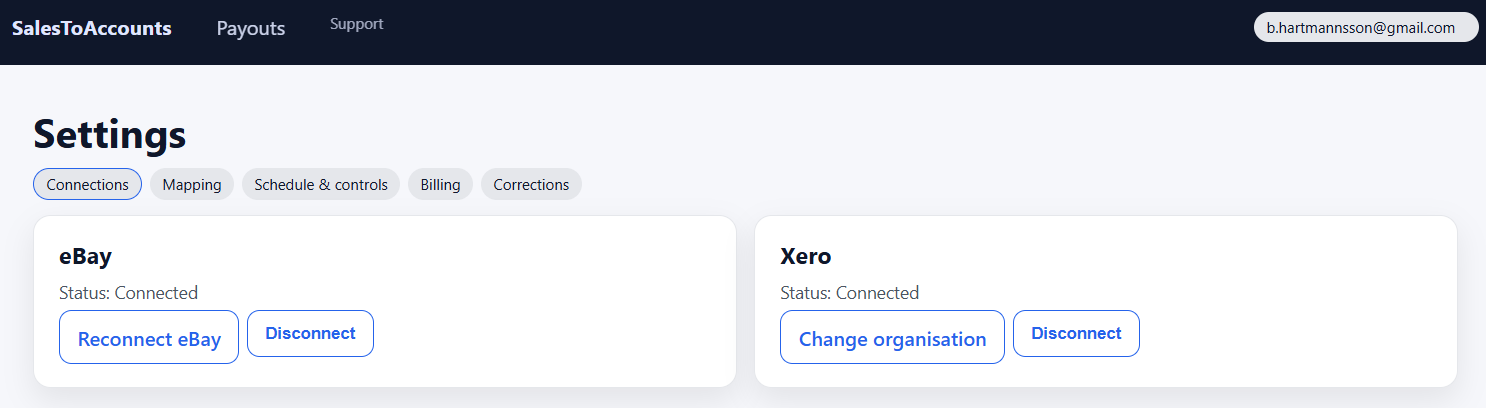
Start by creating an account in the app, then connect the Xero organisation you want SalesToAccounts to post into.

That gives the workflow somewhere to send the accounting entry. Without it, there is nowhere for the payout result to go.

Step 2

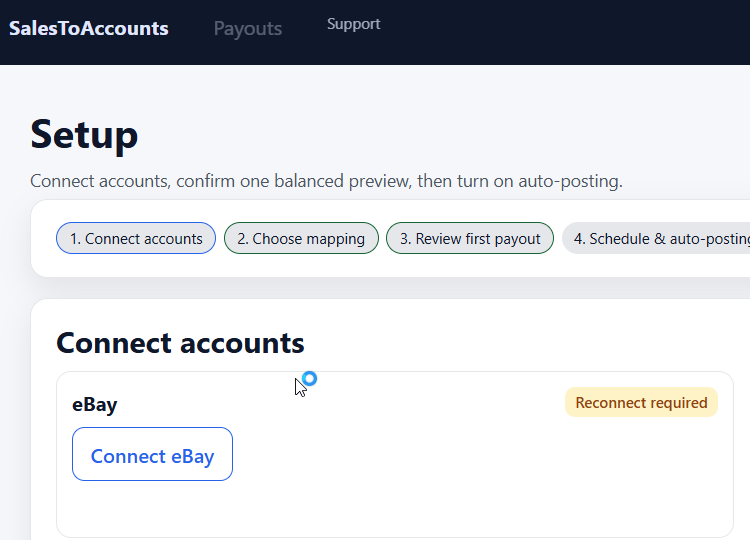
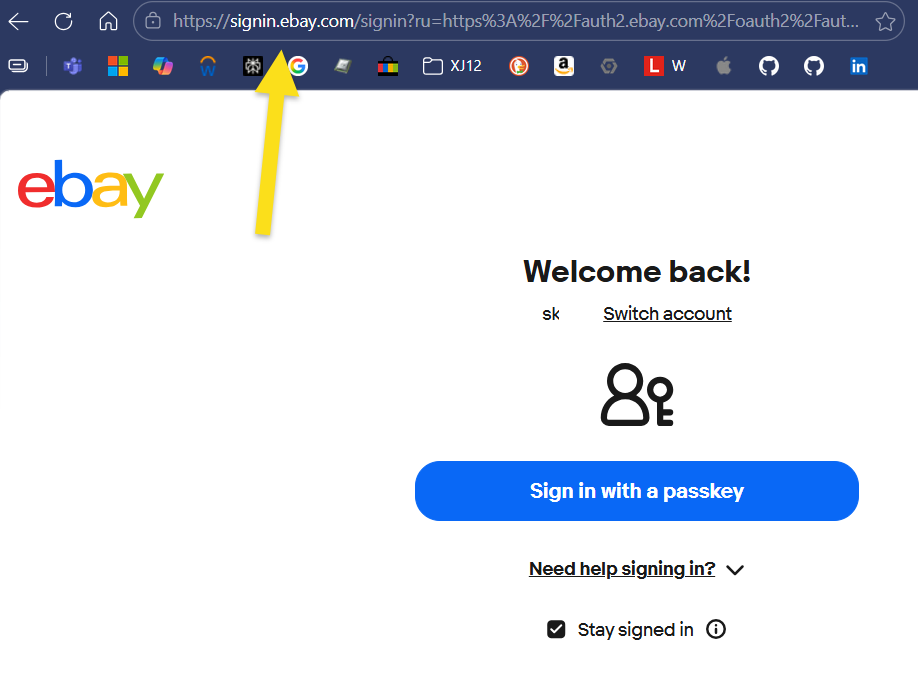
Connect your eBay account

Connect the eBay account that is receiving Managed Payments payouts.

This is the source data for the workflow. SalesToAccounts reads the payout data from eBay and prepares the accounting result from there.

Step 3

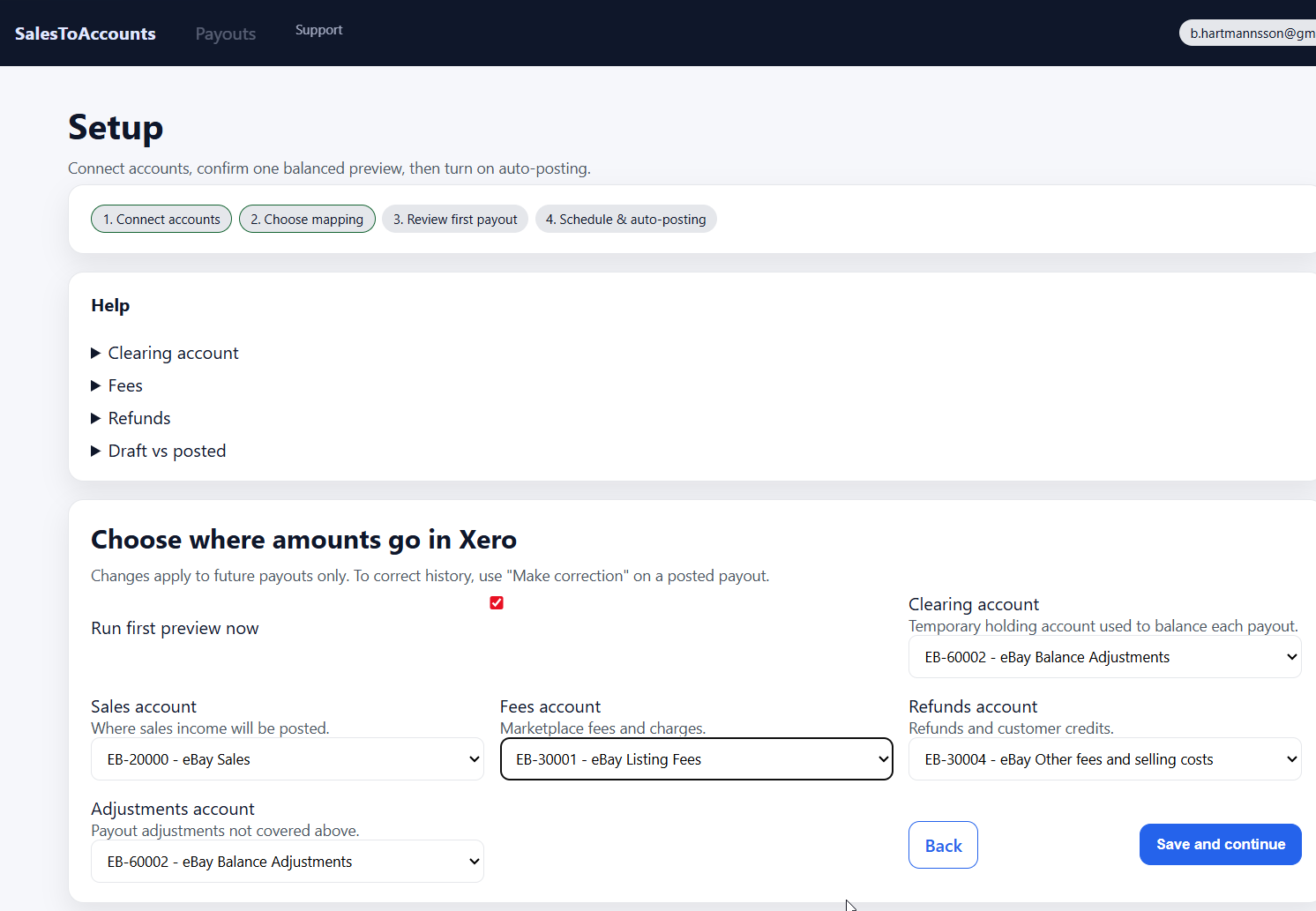
Choose where each payout part lands

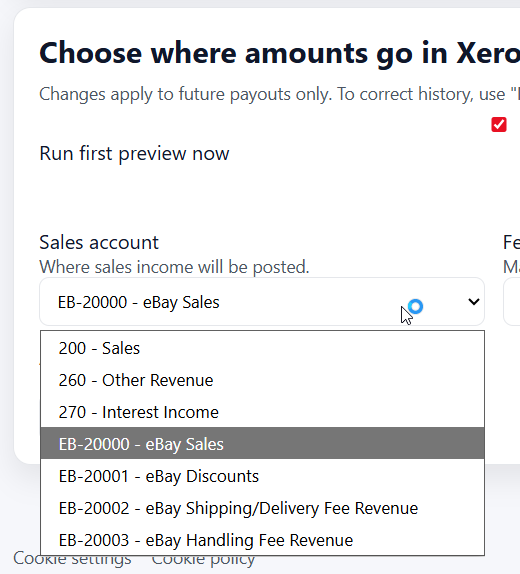
Choose the accounts for sales, fees, refunds, adjustments, and the net payout balance line.

These mapping choices control how future payout entries are created, so this is the setup step that matters most before review.

What to check: each category is going where you would expect to see it in your accounting software later.

Sales
Revenue lines created from the payout.
Fees
eBay charges and related cost lines.
Refunds
Refund-related lines kept separate from sales.
Adjustments
Other payout adjustments that need explicit routing.
Clearing
The balance-handling account used for the net payout.

Step 4

Review one real payout before relying on it

Review one real payout before scheduled posting is turned on so you can see whether the output makes sense for your books.

What to review first

  • The payout reference and net payout amount match what eBay shows.
  • Sales, fees, refunds, and adjustments are split into lines you can follow.
  • Each line is going to the account you expect.
  • The result balances before scheduled posting is turned on.

Read the import guide

Step 5

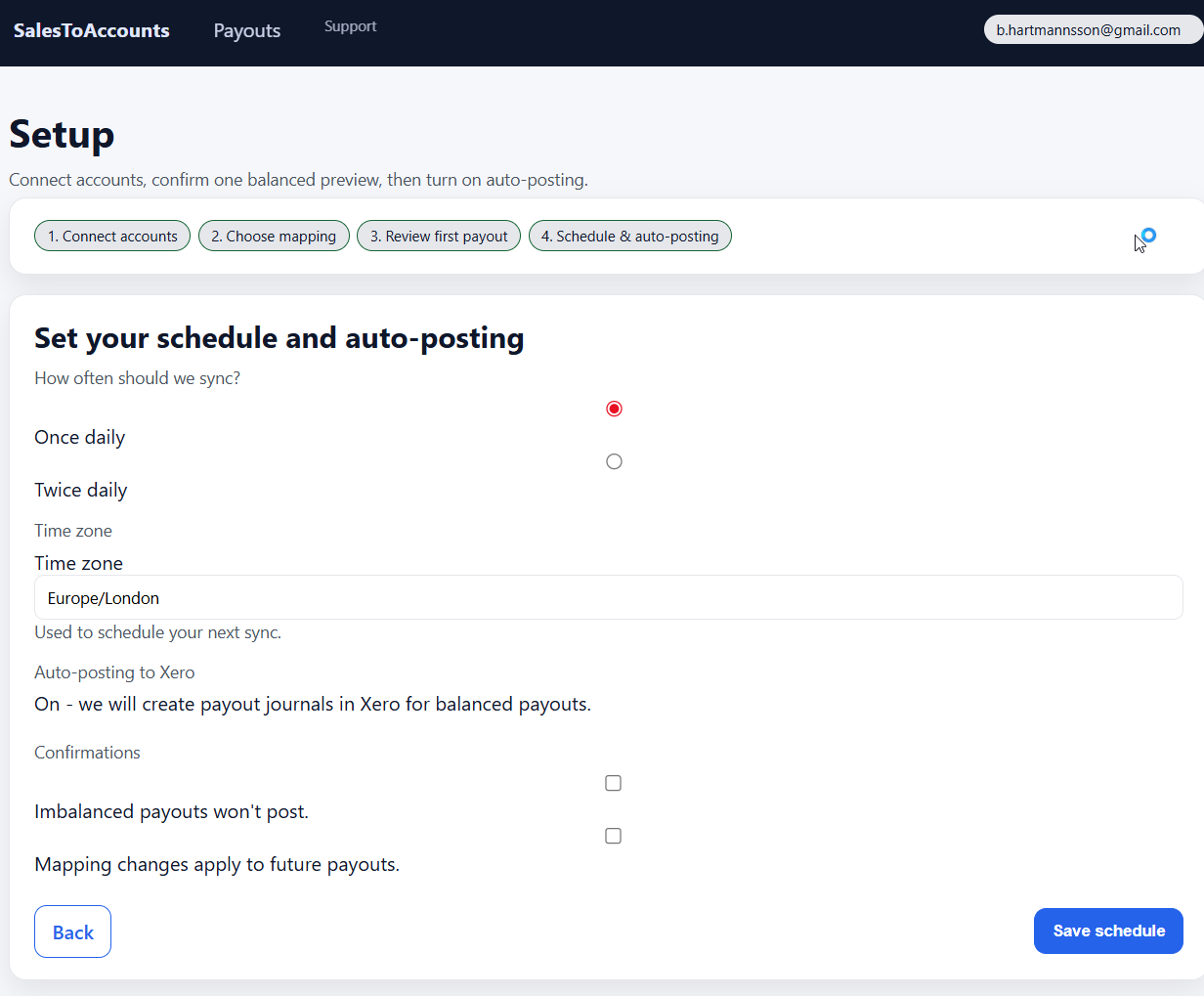
Turn on scheduled posting

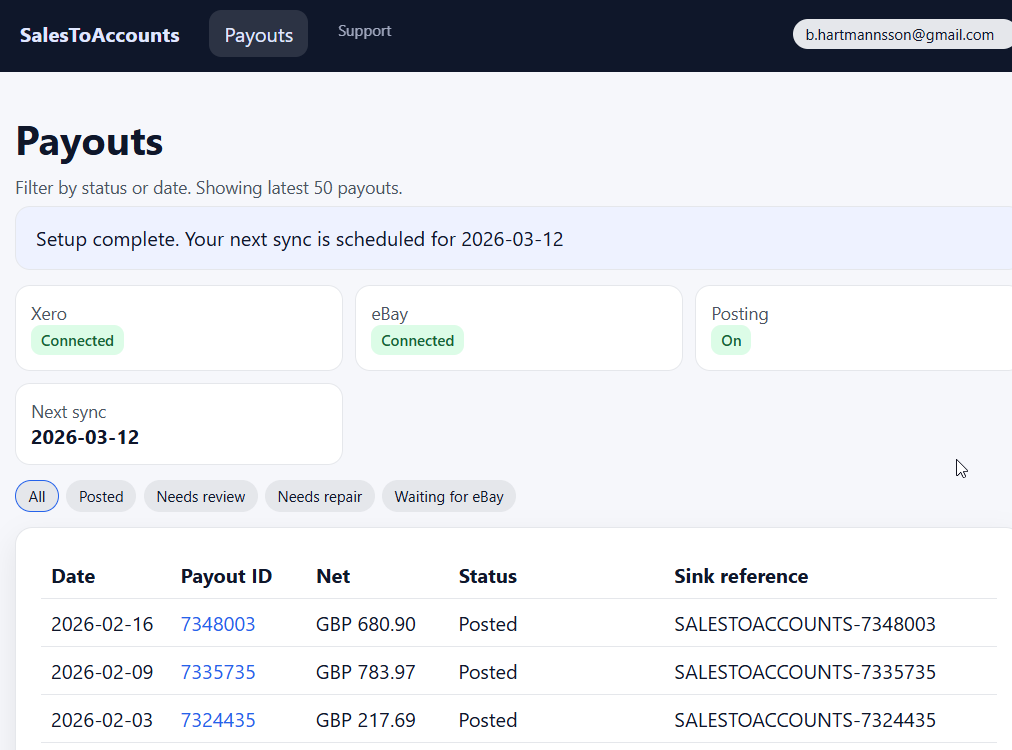
Once the first payout review looks right, choose the schedule and enable posting for future balanced payouts.

  • Only balanced payouts are posted.
  • Mapping changes affect future payouts, not old ones.
  • Posting runs on a schedule rather than in real time.

Ready to start?

Create an account in the app and follow these steps. Use the pricing page for the trial and paid-plan terms.

Guarded automation

When STA pauses

STA does not post blindly. It pauses and asks for attention when the payout is not safe to book automatically.

  • The payout does not reconcile.
  • There is a duplicate risk.
  • An eBay transaction type is unsupported or unknown.
  • Xero has a locked period, account, or mapping issue.
  • The payout is outside scope, such as non-GBP.

Next step

Start with one real payout

Create an account, connect Xero and eBay, then review one historical payout before enabling scheduled posting.